
Linphone SIP Account Configuration
- Before configuration you need to have an active account with us.
- Make sure, that you have downloaded and installed Linphone application on your PC or Mobile
Download from here: http://www.linphone.org/
- Check your device credentials via MY ACCOUNT > Personal details > Devices
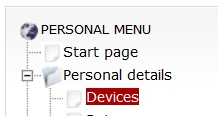
- Your login/password are coming from MY ACCOUNTportal > Personal details > Devices:

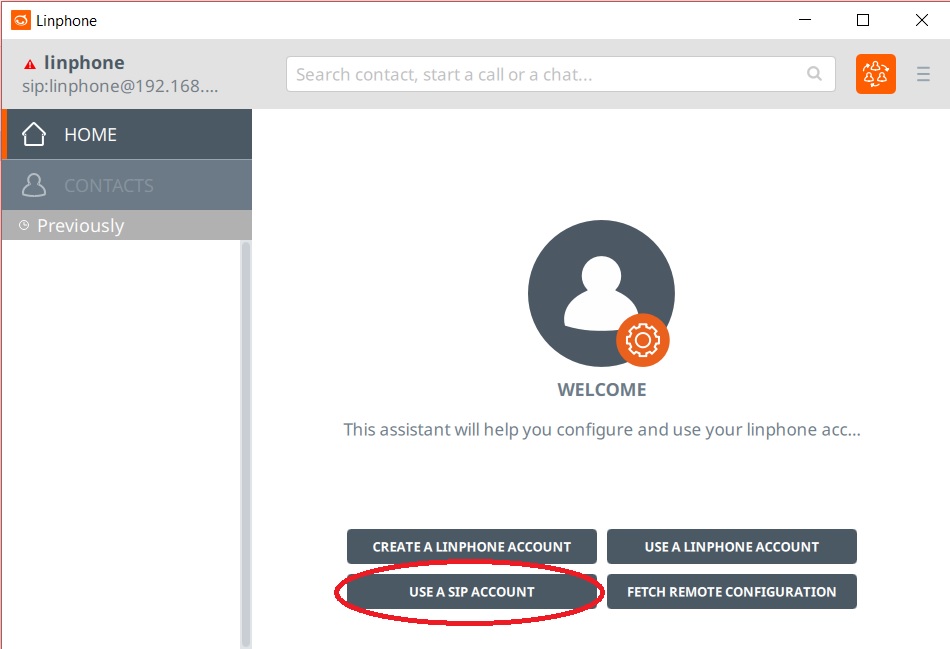
- Once application is installed click on "Use a SIP Account" button:
- Enter Credentials in account configuration menu:
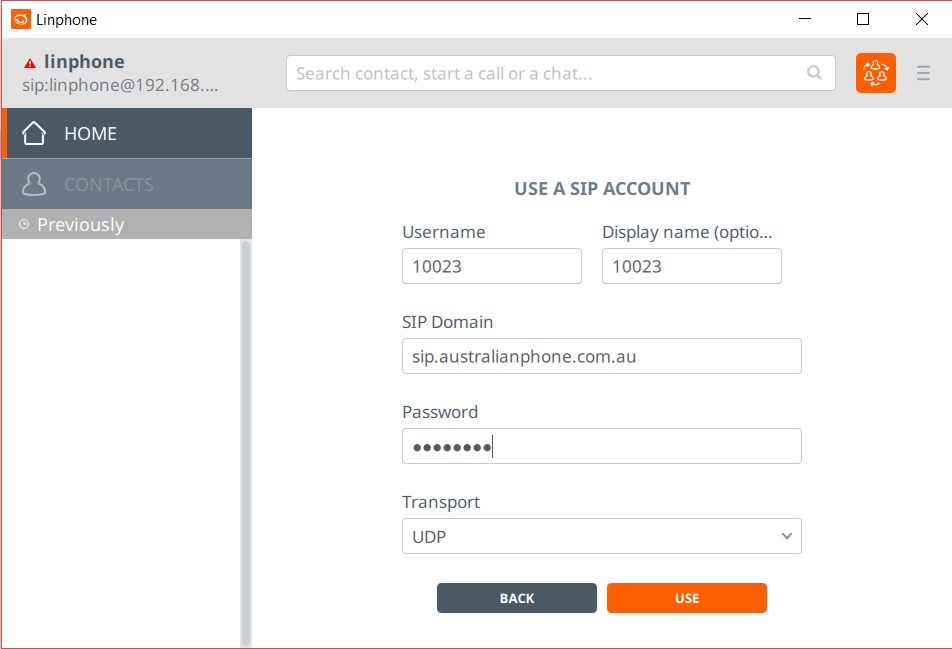
- You must define next details:
- SIP Domain: sip.australianphone.com.au
- Username: match Username from your account (10023 in case of example)
- Display name: match Username from your account (10023 in case of example)
- Password: match device's password from your account.
- Transport: Leave UDP for desktop, select TCP if you are using on your mobile or via mobile connection
- Click "USE"
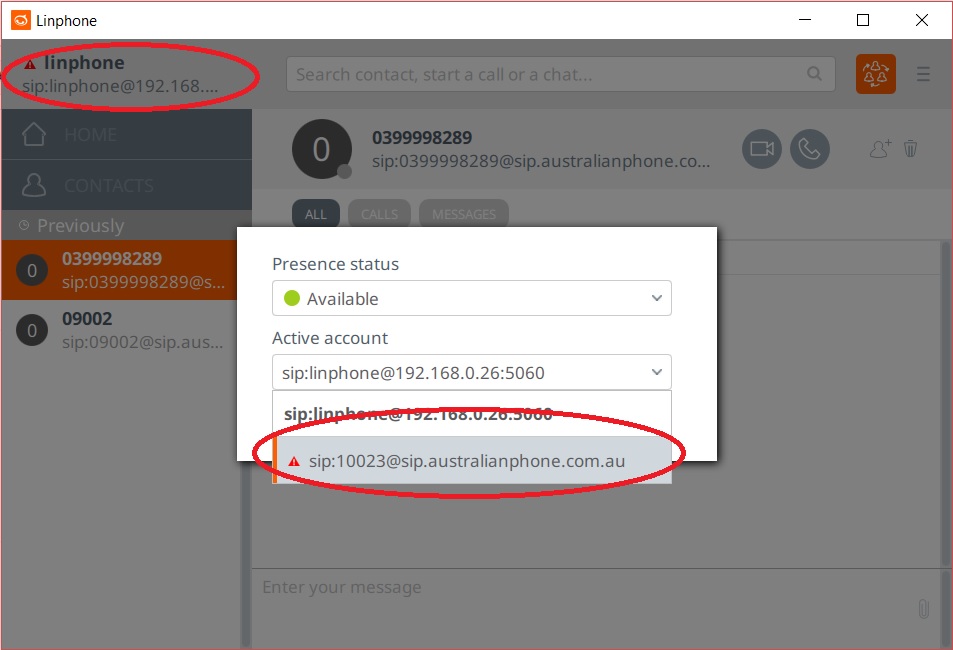
- Select created account on top left
- Make a free 09002 test call
Click here to view how to enable VoIP encryption on Linphone (optional)
- Please read carefully this topic: How to Enable Security with VoIP
- Send us email to support@australianphone.com.au to ask to enable VoIP encryption on your device (Please mandatory state device number)
- Now we need to switch Linphone to encryption mode for TLS
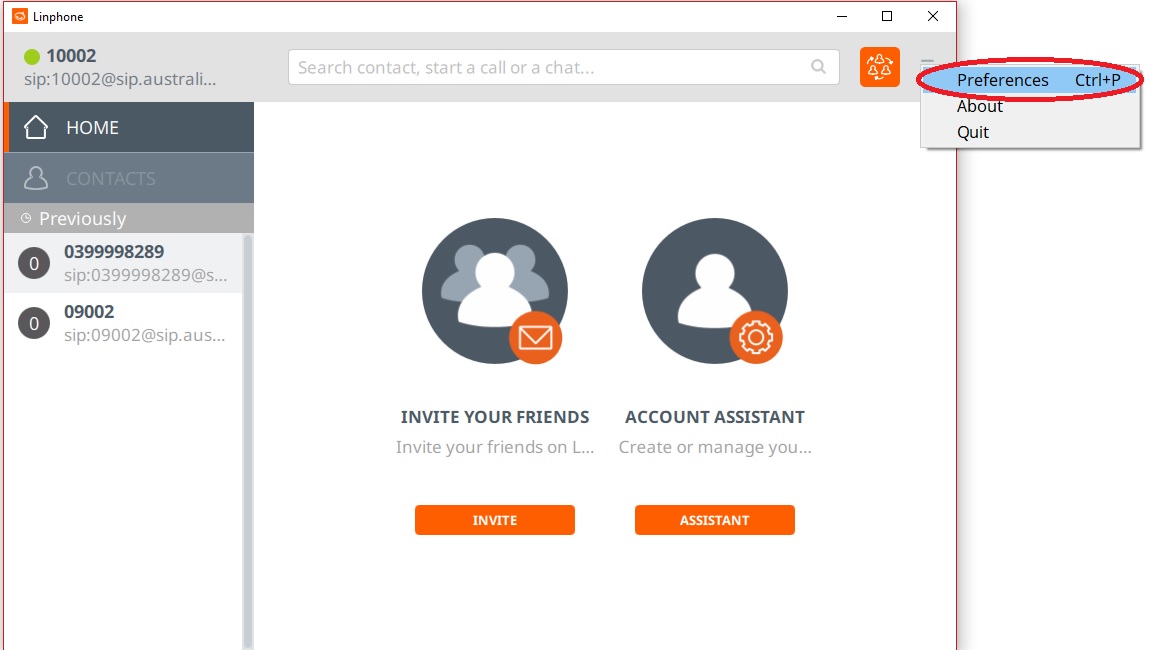
- Navigate to account preferences on the right side:
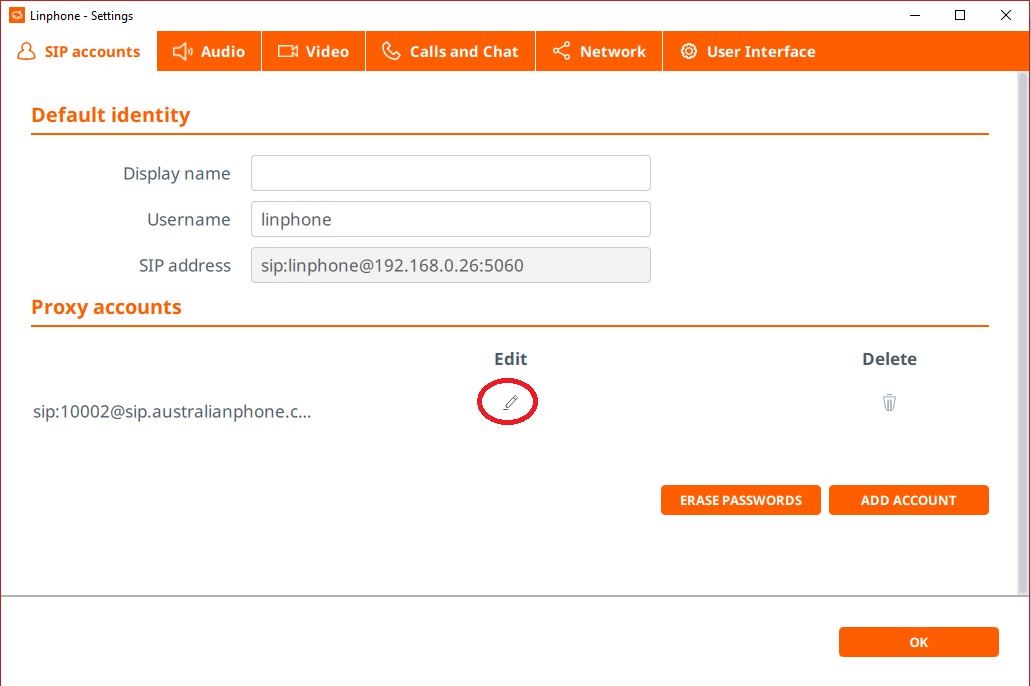
- Click Edit on Australian Phone account used before:
- Modify your SIP Server address to: sip2.australianphone.com.au
- Change transport type: set TLS
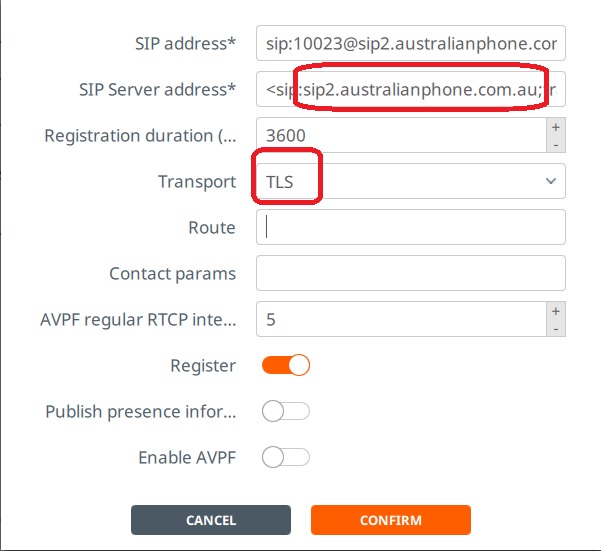
- Click Confirm to Save
- Navigate to Calls and Chat on the top
- Enable SRTP encryption
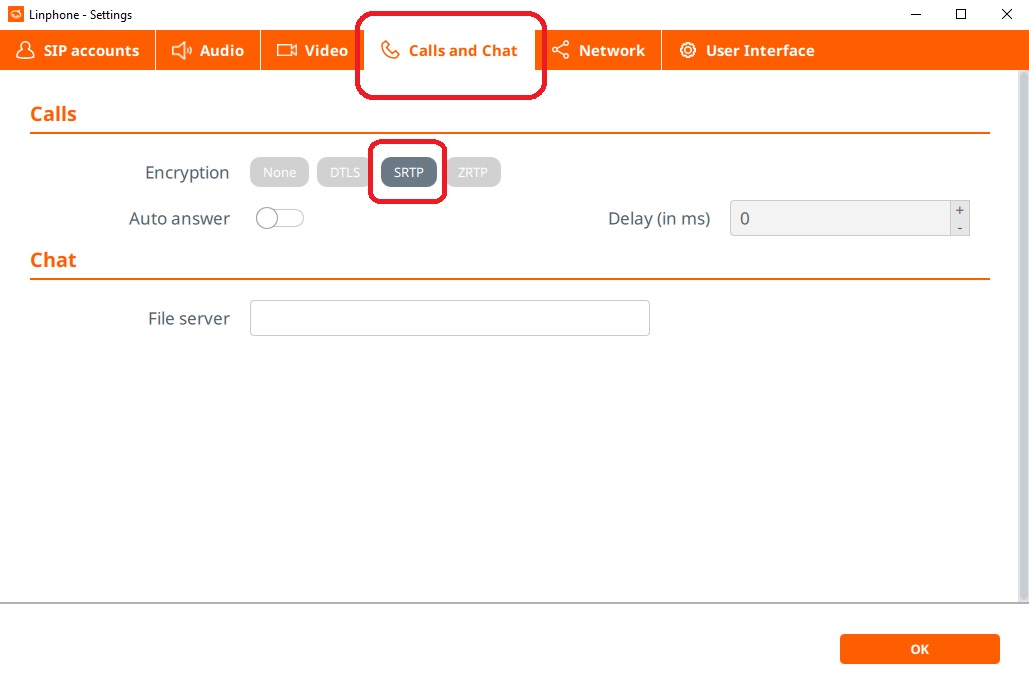
- Click OK to Save
- Make a test call to 09002, you should see closed lock symbol “🔒” and prompt “Call is encrypted with: SRTP.”

Comments
0 comments
Please sign in to leave a comment.